Coordinates
Latitude and longitude appear below the water's name. Tap the copy icon to use them in another map or GPS device.
Find trout water, use the map tools, and check conditions for hatches and feeding trout.
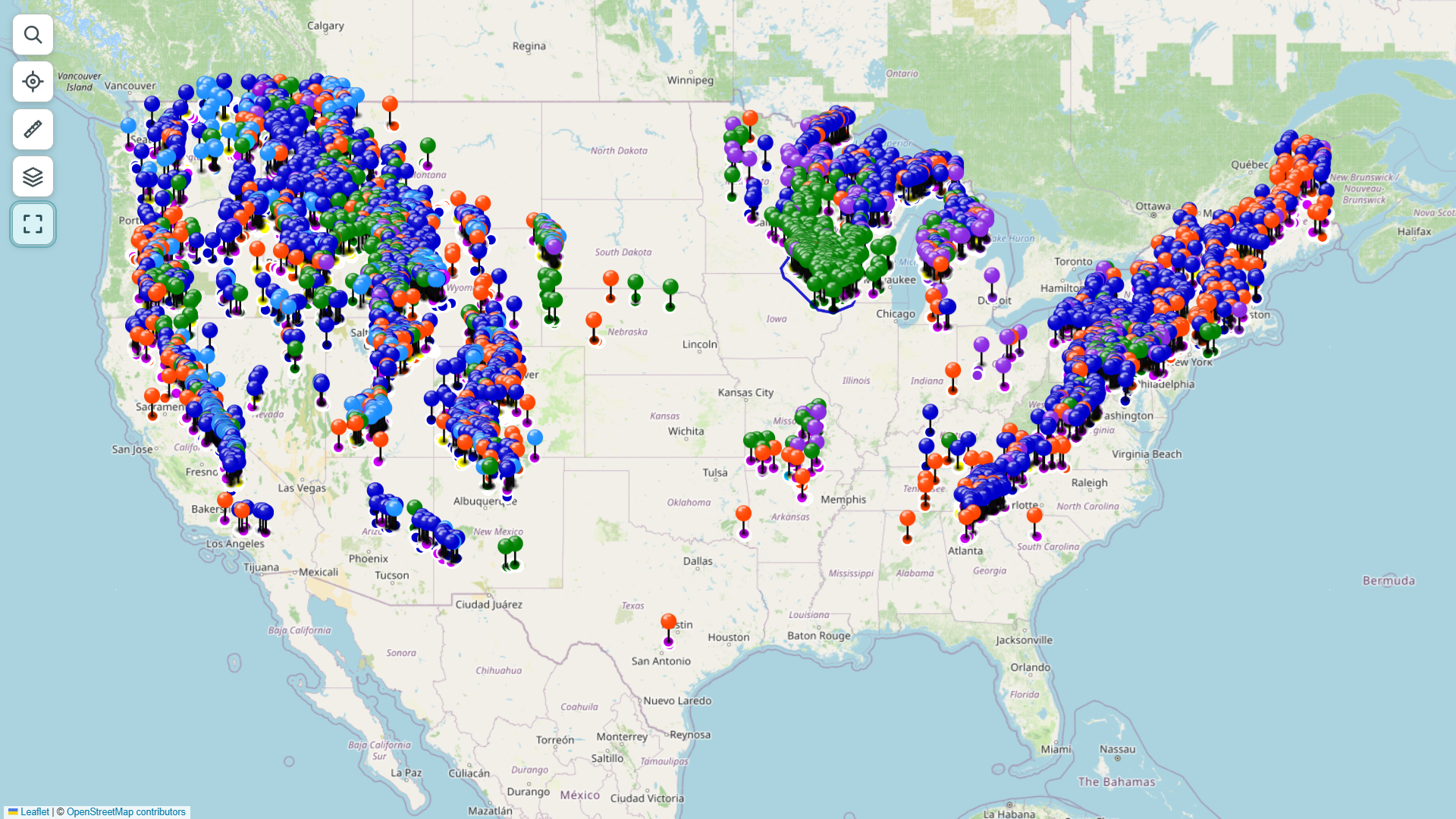
Start with the pin colors, or jump straight to the tool you need. The screenshots come from the Superhatch Map itself.
The pin colors tell you what kind of water or location you are looking at.
Tip Tap a colored pin to open its pop-up.
Tap a large pin to open the entry guide for that water.
Scroll inside the pop-up to explore trout species, water characteristics, access, regulations, streamflow, and important hatches.
Use the map controls to zoom, search, measure distance, and change base layers.
Use full-screen mode for better viewing.
The three levels describe how strongly hatches influence surface fishing.
Limited or inconsistent surface hatches.
Good hatch activity, but usually timing-specific or section-specific.
Strong hatch-driven water where insect activity can bring trout consistently to the surface.
Open a large pin to see its coordinates, fishing details, and planning links.
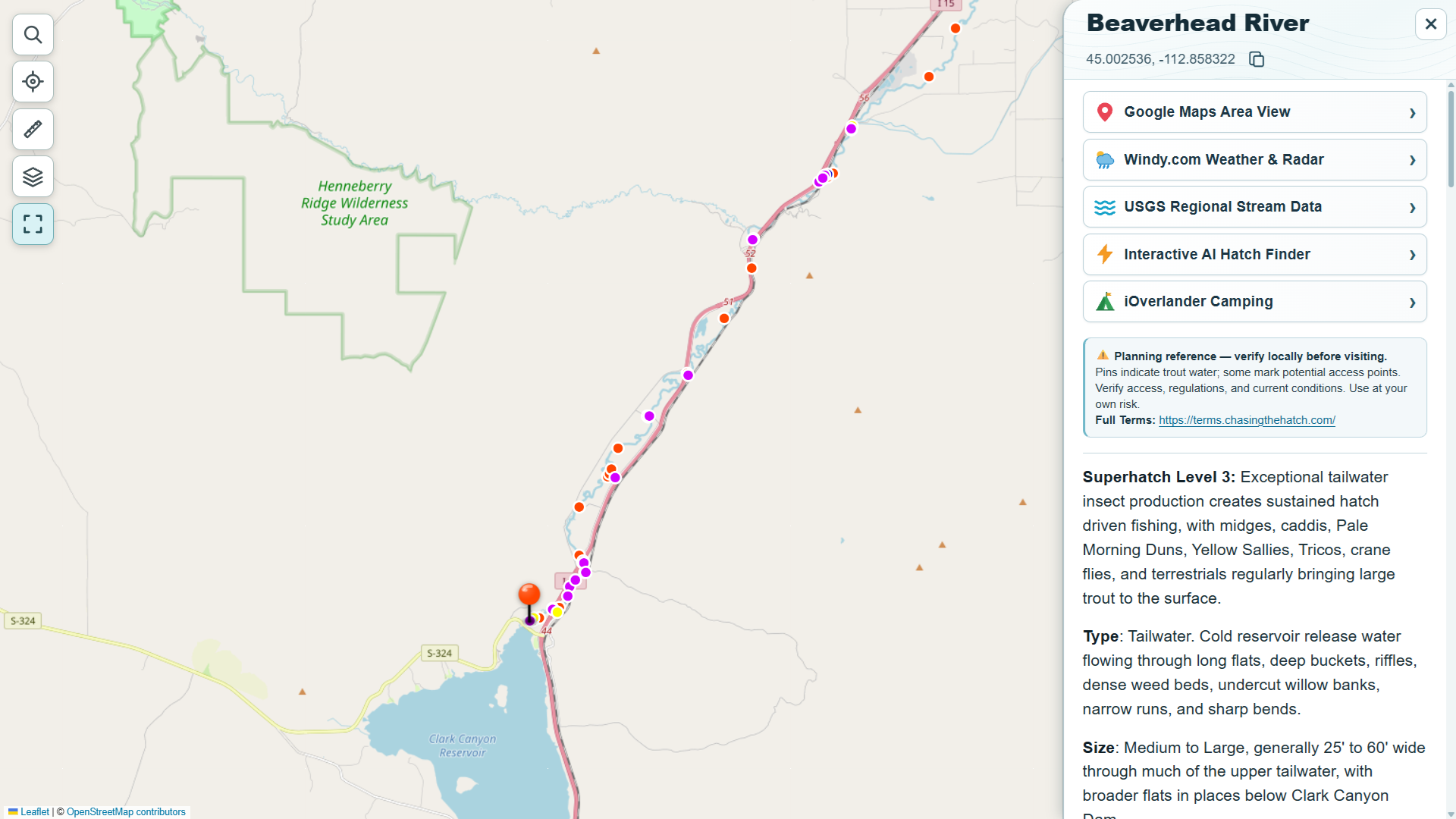
Large pins open detailed fishing guides for each water. Depending on the location, you'll find its Superhatch Level, water type and size, trout species, productive trout habitat, fishing season, special regulations, access and wading information, streamflow references, descriptions, best hatch sections, and seasonal hatch timing.
Planning links at the top of the pop-up provide quick access to Google Maps, Windy weather, USGS stream data, the Interactive AI Hatch Finder, and nearby camping resources.
Latitude and longitude appear below the water's name. Tap the copy icon to use them in another map or GPS device.
Opens the pin in Google Maps so you can check nearby roads and landmarks.
Check nearby weather, radar, and wind on Windy.com.
Check nearby USGS gauges for streamflow, water level, and temperature when available. A gauge may be on another stream.
Checks nearby waters within a 100-mile radius of the selected pin for possible hatches and dry-fly fishing.
Look for nearby camping on iOverlander. Use the pin coordinates to narrow the search.
Pins show the extent of trout water, not necessarily public access. Check posted signs, current regulations, and conditions before visiting.
Use boundary lines to get oriented, not as proof of public access.
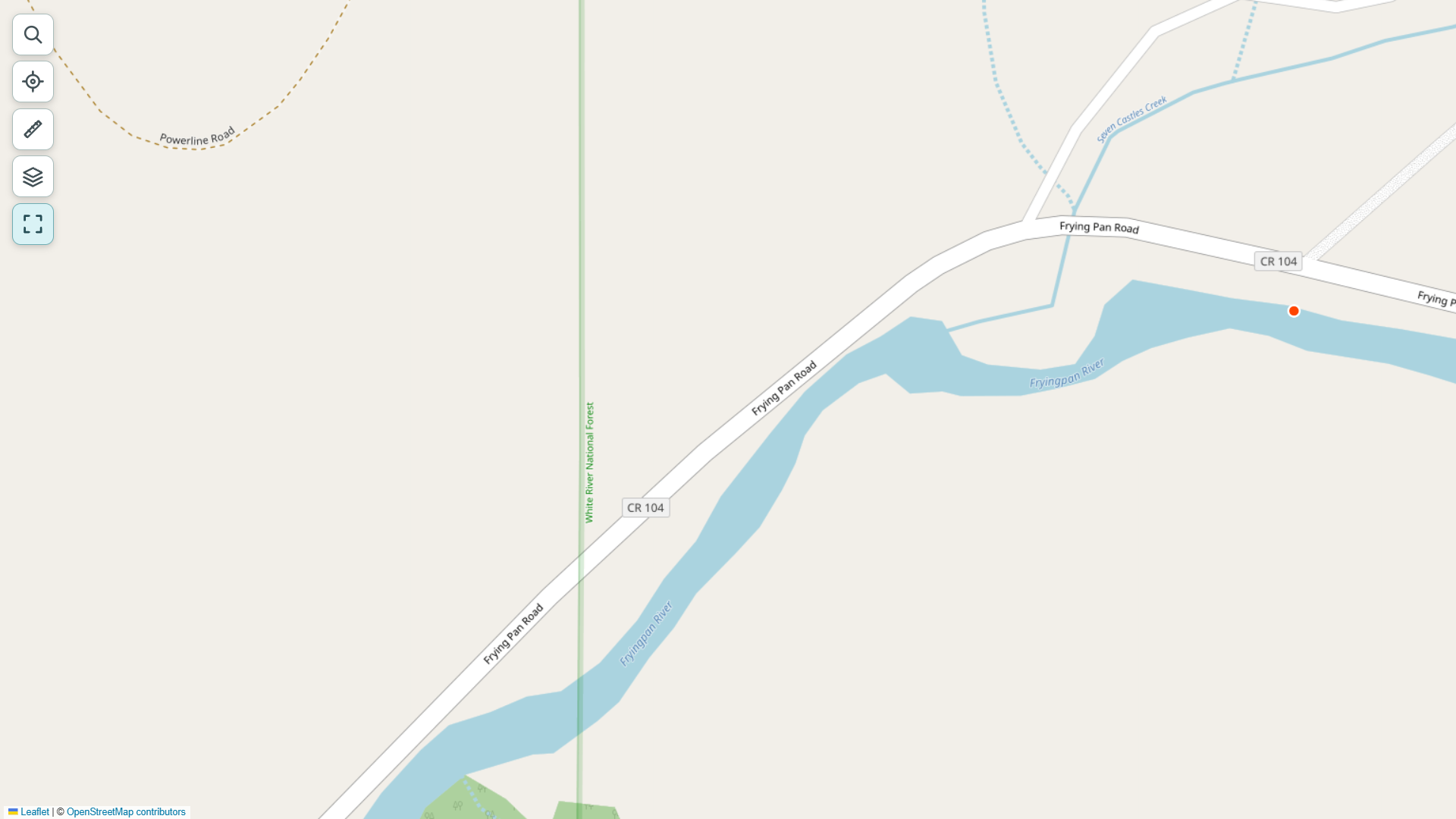
Boundary lines are shown where available and are for general reference only. They are not a property survey. Check current land status and obtain permission where required before entering.
Enable the GPS location icon to compare your position with nearby boundaries.
Find named waters, parking areas, and trailheads. Check access before going.
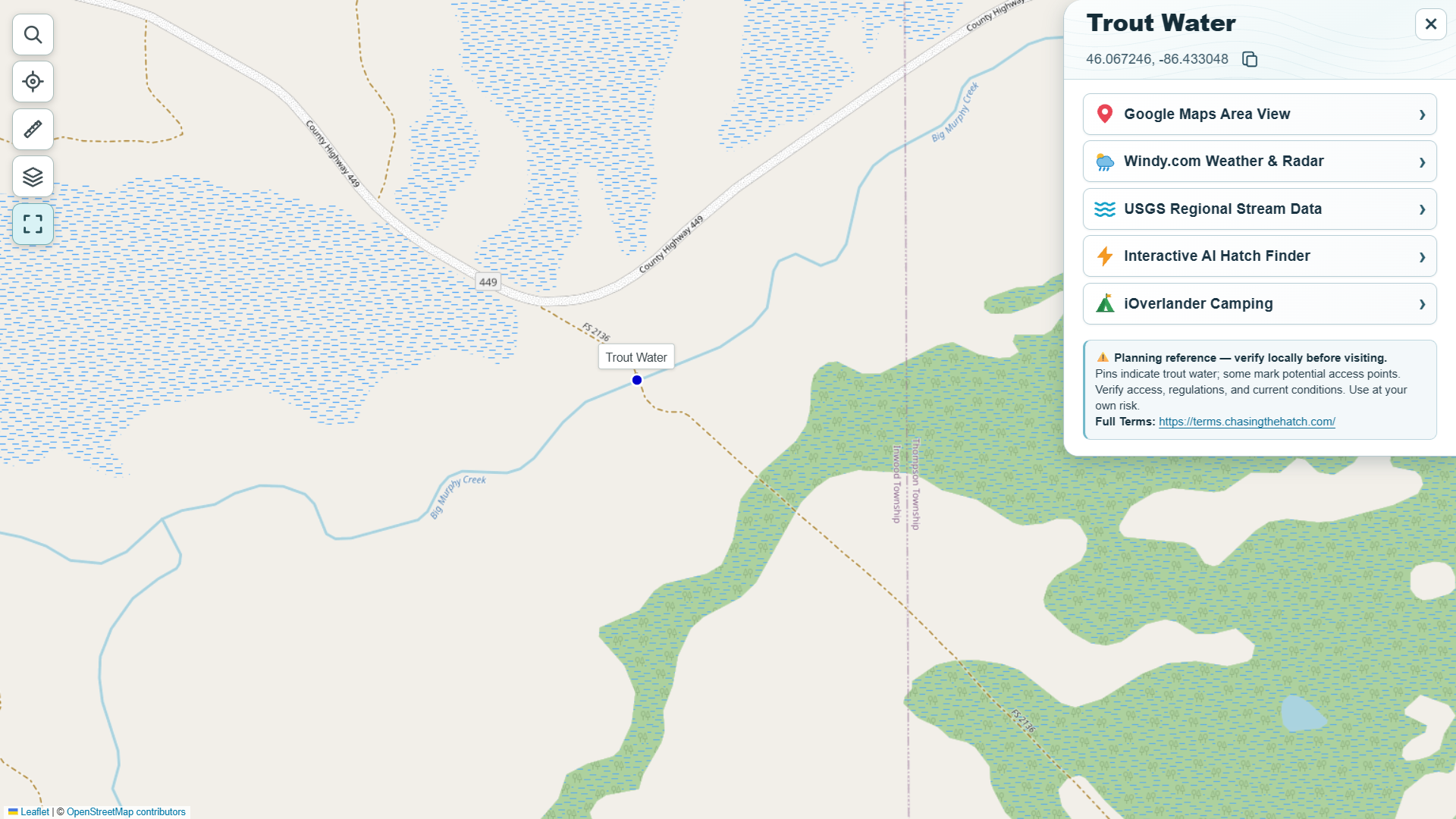
Some pins identify pools, parking areas, trailheads, or landmarks. Pins labeled Trout Water show the extent of a trout stream, not necessarily public access. Open a pin for its coordinates and planning links. Parking and access can change. Verify legal access and posted restrictions before visiting.
Choose from four map backgrounds: OpenStreetMap, USGS Topo, OpenFreeMap Bright, and OpenFreeMap Liberty. Tap the Layers button to switch between them.
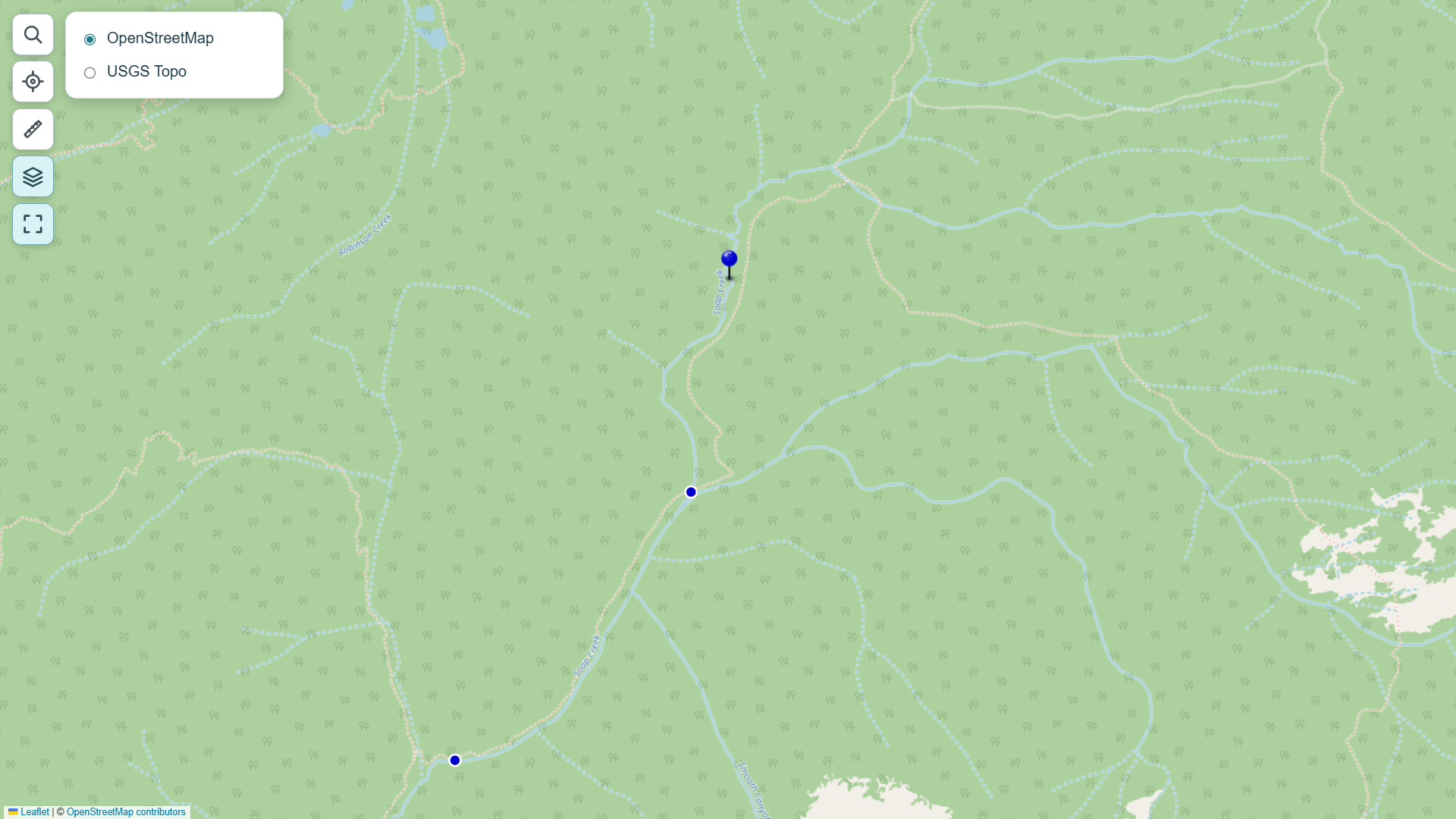
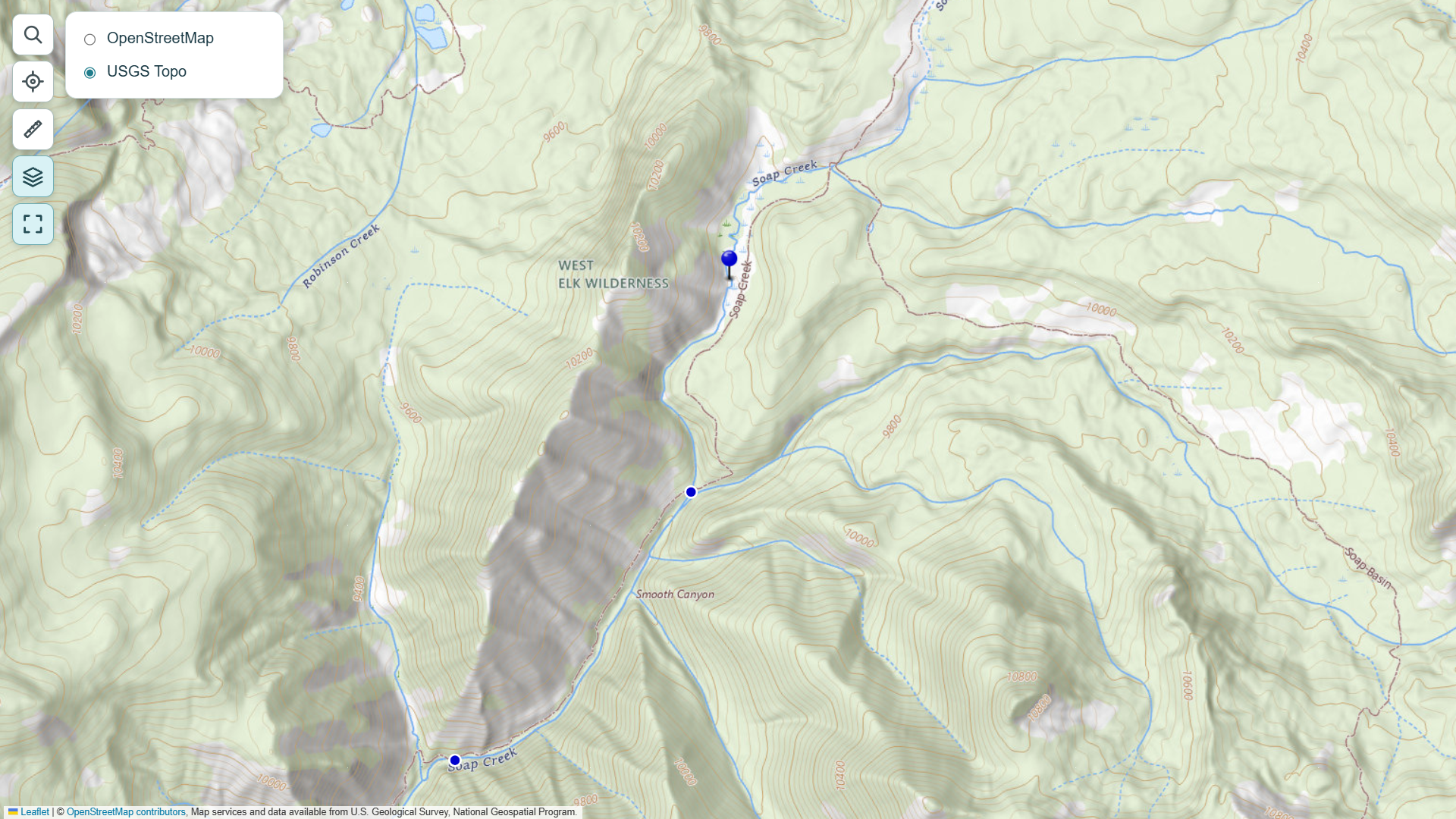
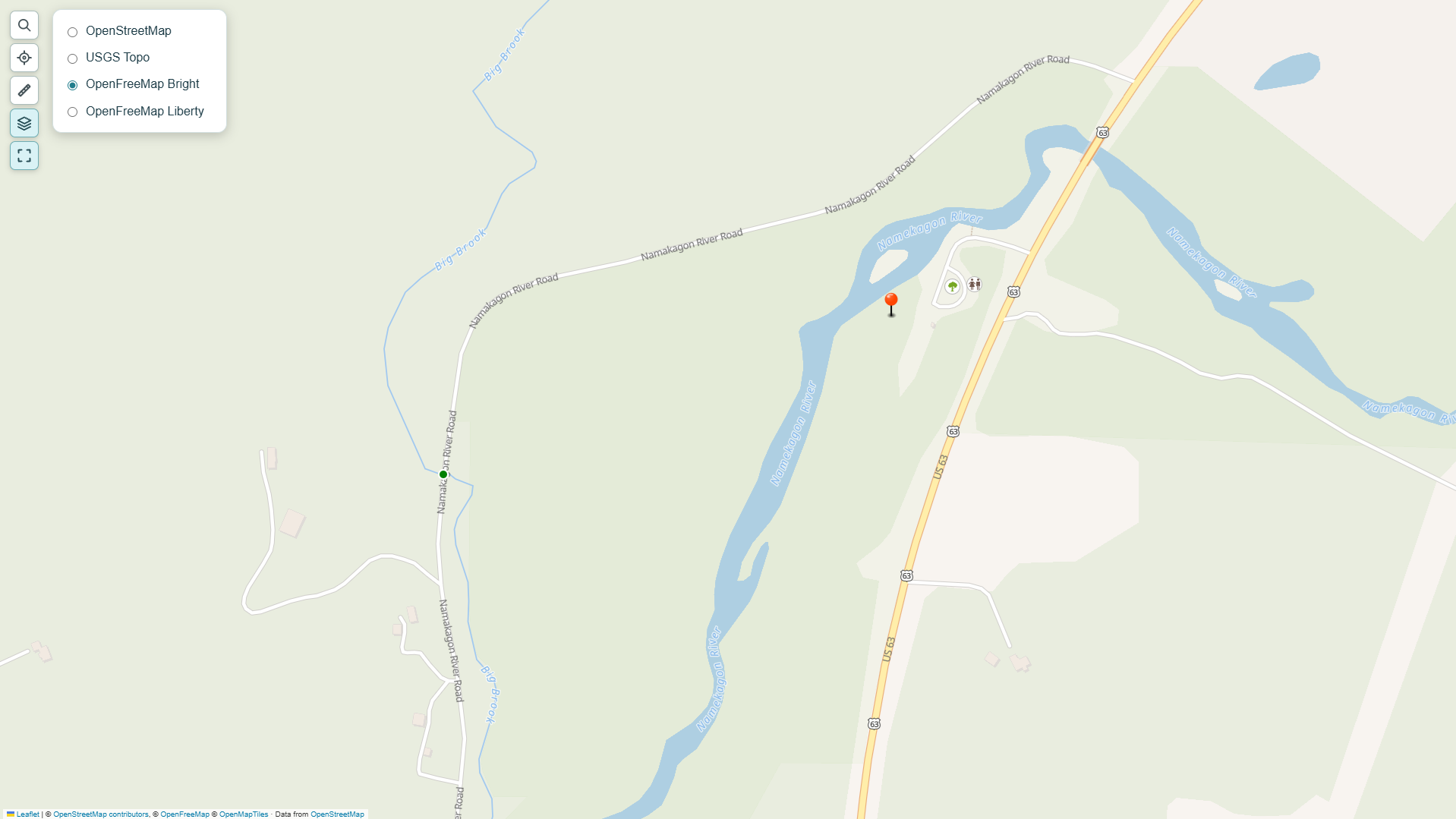
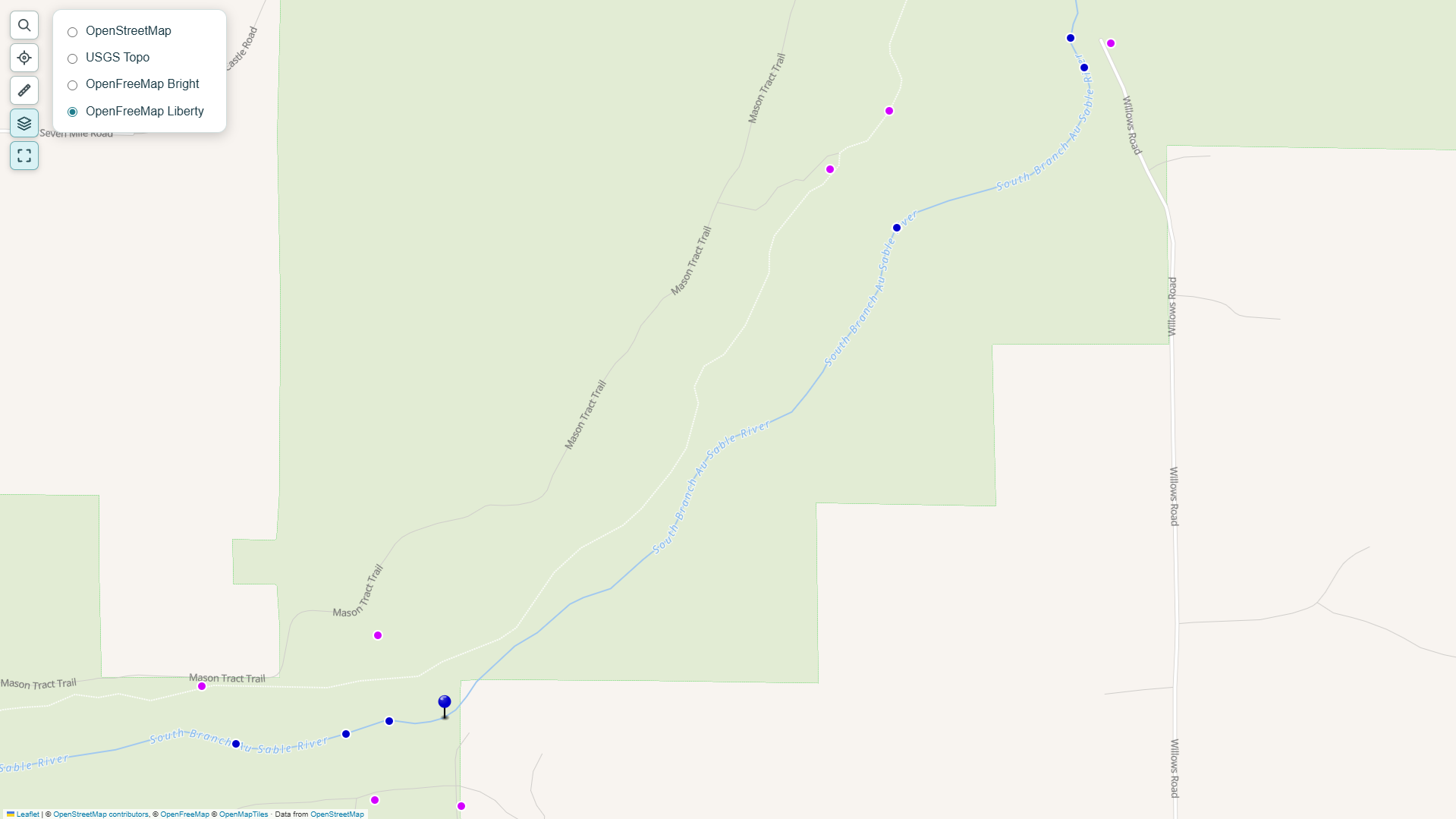
Map background credits: © OpenStreetMap contributors · USGS Topo (U.S. Geological Survey) · OpenFreeMap © OpenMapTiles. OpenFreeMap uses OpenStreetMap data.
Use OpenStreetMap for familiar roads and trails, USGS Topo for terrain and elevation contours, OpenFreeMap Bright for a clear, colorful view of streams and roads, or OpenFreeMap Liberty for another view of geographic features such as streams, trails, and forest boundaries. Bright and Liberty are two styles from the same OpenFreeMap service.
See where you are, follow your movement, or look around without turning GPS off.
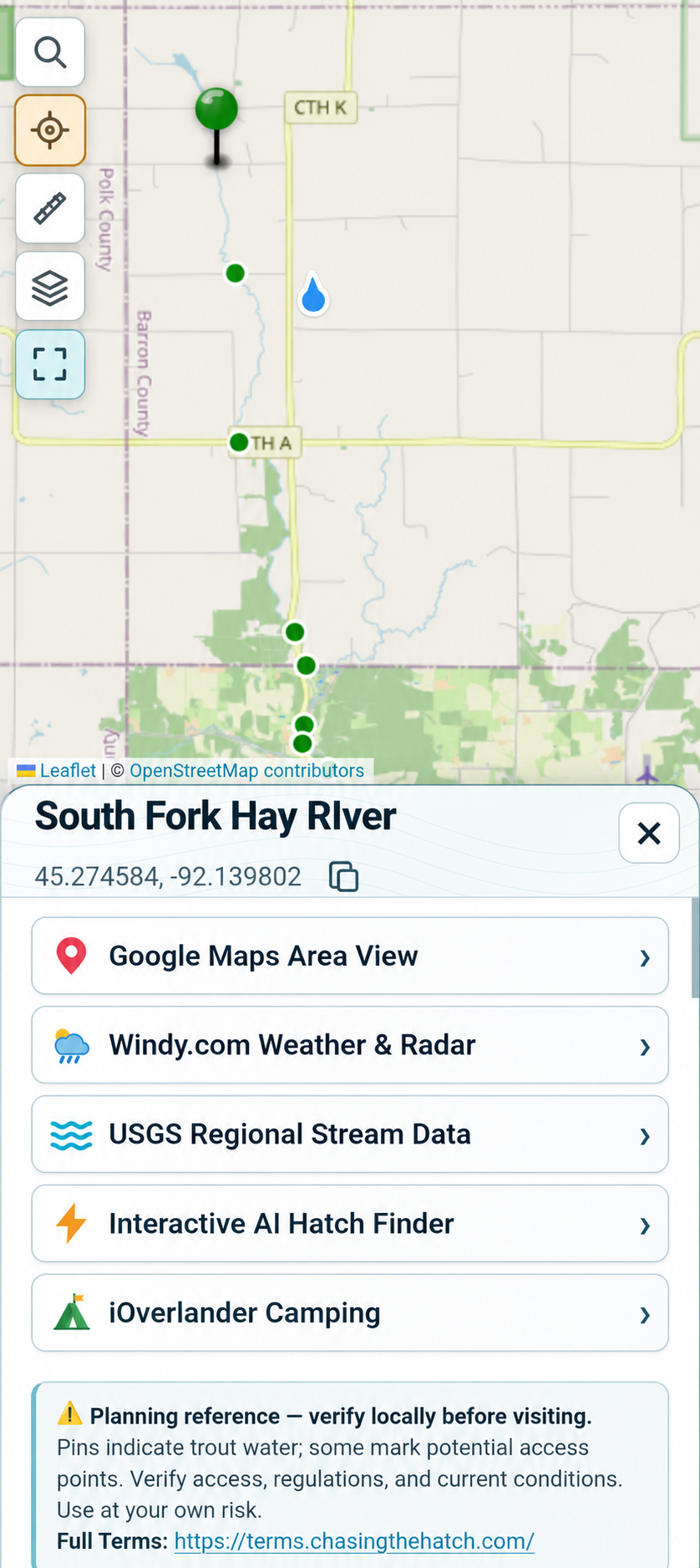
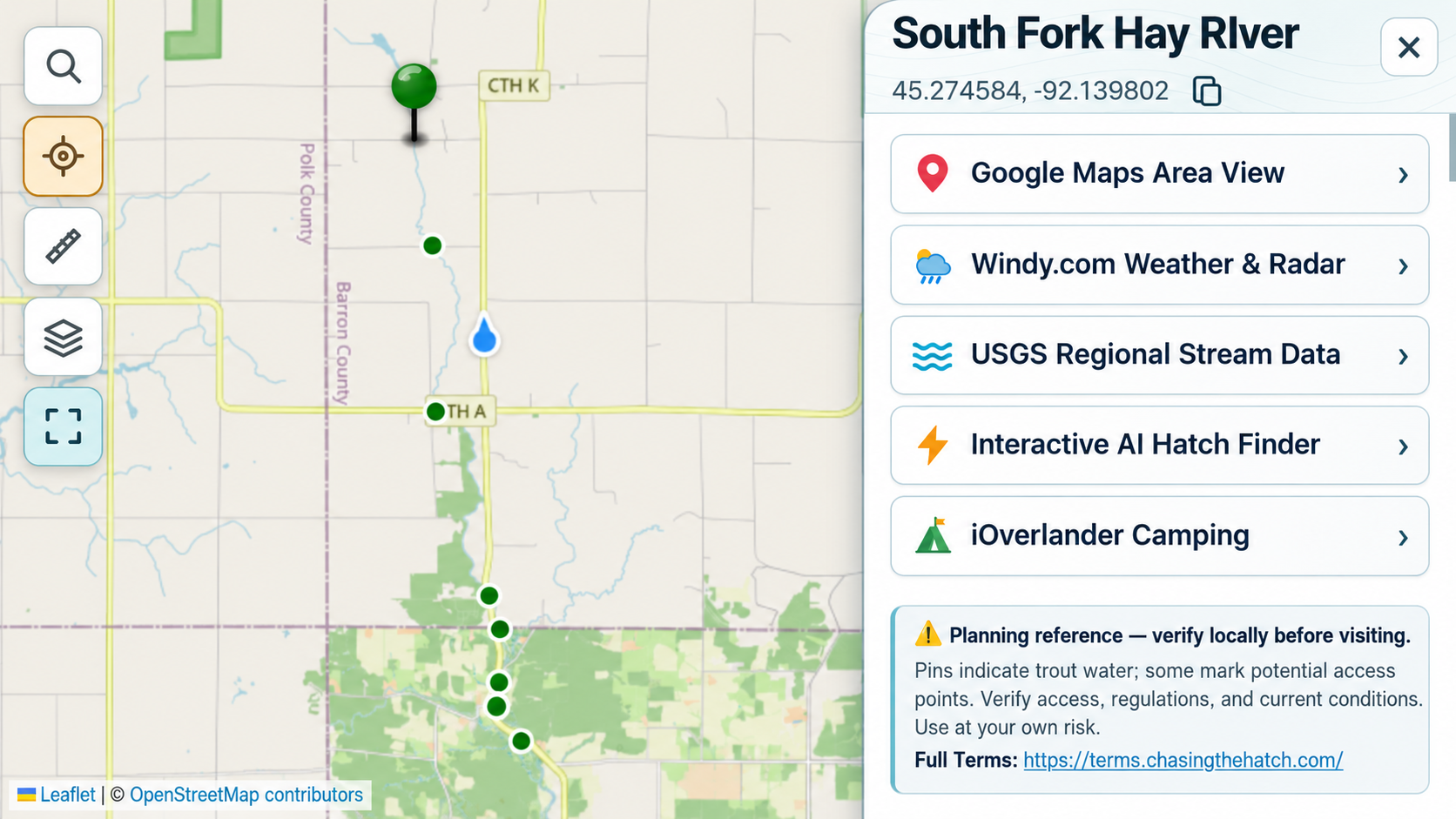
Tap the GPS button once. The map centers on your location and follows as you move. The blue pointer marks where you are. When standing or walking, its pointed tip shows the direction the top of your phone faces. Point the top of your phone forward to check your heading.
When driving, the pointer follows your GPS direction of travel, even if the phone is mounted sideways. It holds a steady direction during brief stops.
While the map is following you, tap GPS again to turn it off.
Drag the map to look around. GPS stays on and your location keeps updating, but the map stops following you. Tap GPS once to recenter and resume following. Tap it again while following to switch GPS off.
Allow location access when prompted. Direction comes from your phone's compass or GPS movement. If the heading is uncertain, you may see only a blue location circle. Accuracy depends on your device, surroundings, and signal.
Look for possible routes from a road or trailhead to the water.
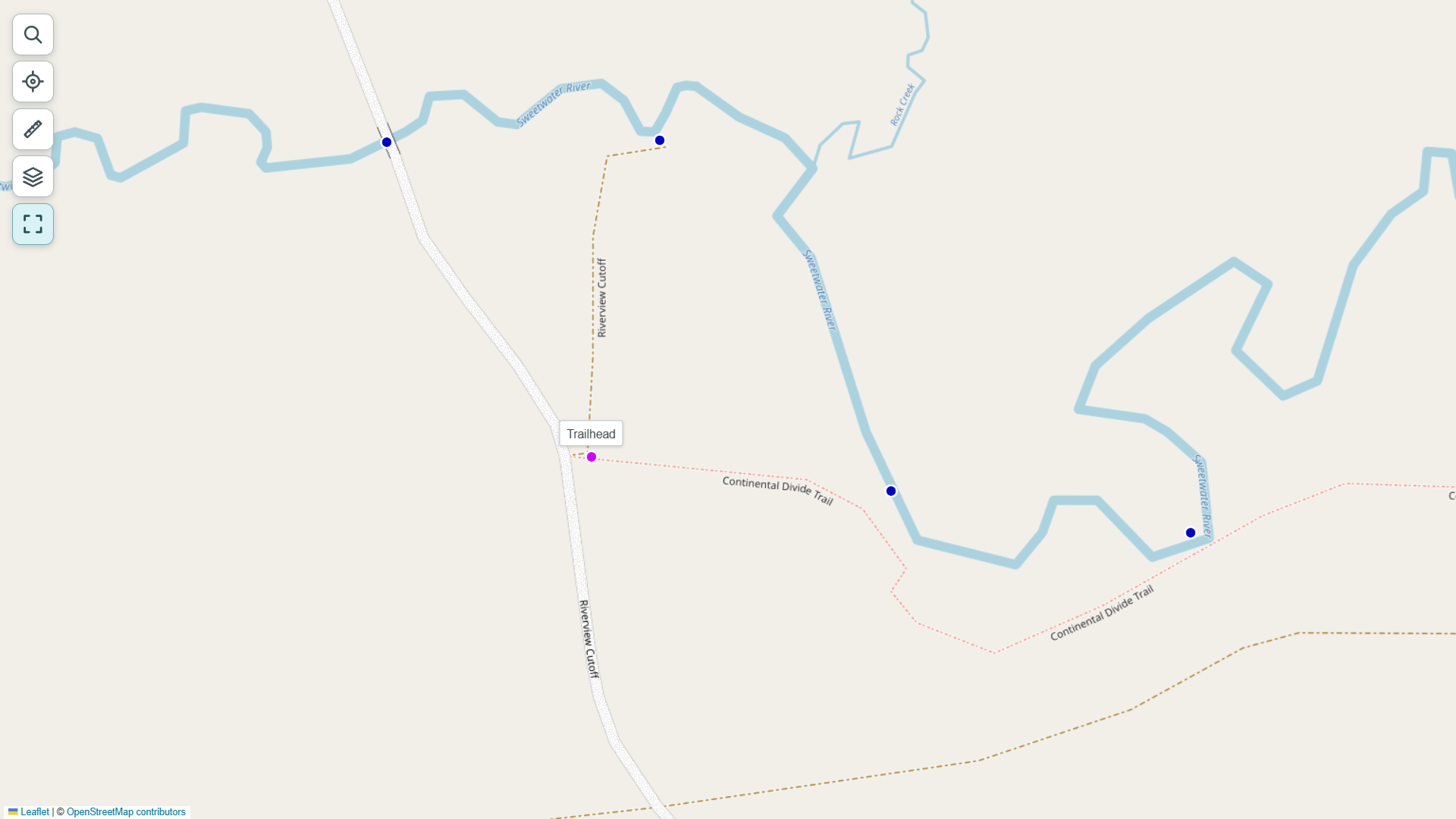
Magenta pins mark possible parking areas and trailheads. On the OSM Base Layer, look for thin red or dashed lines that may show trails. Use them to plan a possible route, then check access, closures, and trail conditions before setting out.
Use a map pin to find trout waters and likely hatches within a 100-mile radius.
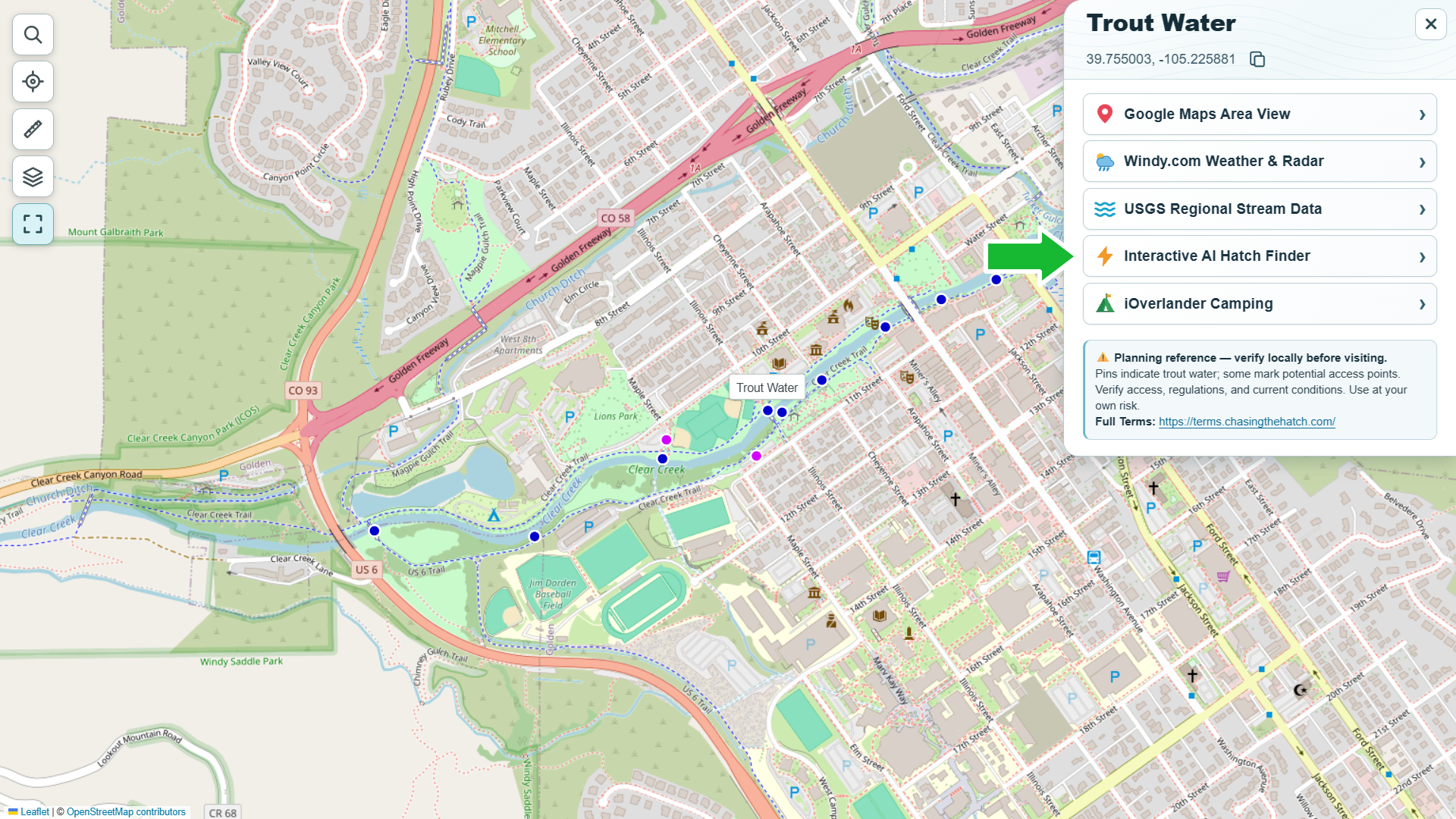
The Hatch Finder looks at hatch timing and, when available, streamflow, weather, and recent fishing reports. It suggests up to three trout waters with likely hatches, possible dry-fly windows, approximate fishing locations, and navigation links. You can ask follow-up questions about flies, access, camping, or other waters. The Hatch Finder opens ChatGPT with the request already filled in. Send it to see the results. You may need to sign in first.
Use the ruler to estimate walking routes and stretches of water.
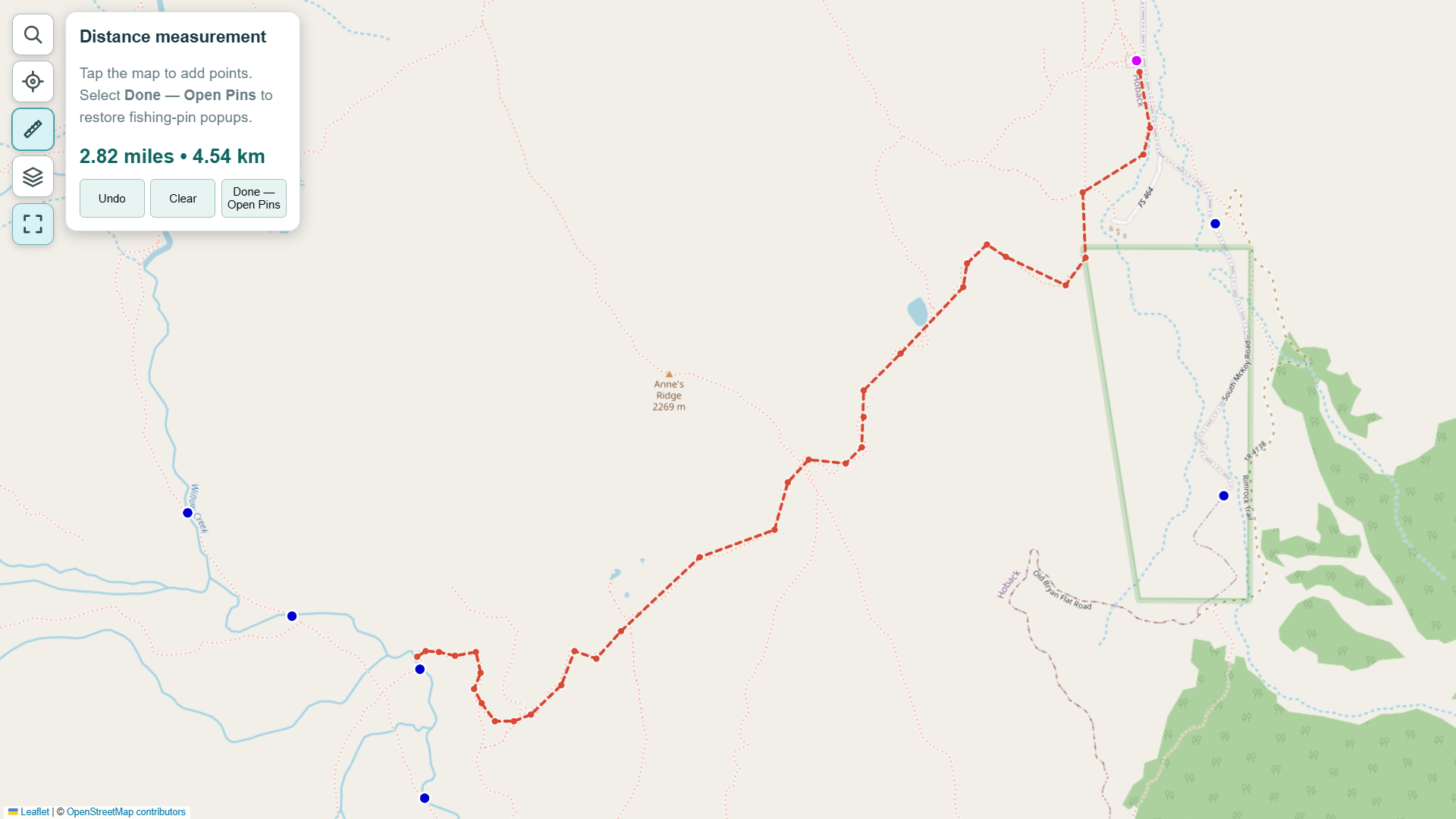
Tap the ruler icon to measure distance in yards or miles. Mark a route or a stretch of stream to estimate its length.
Search by water name to find a stream more quickly.
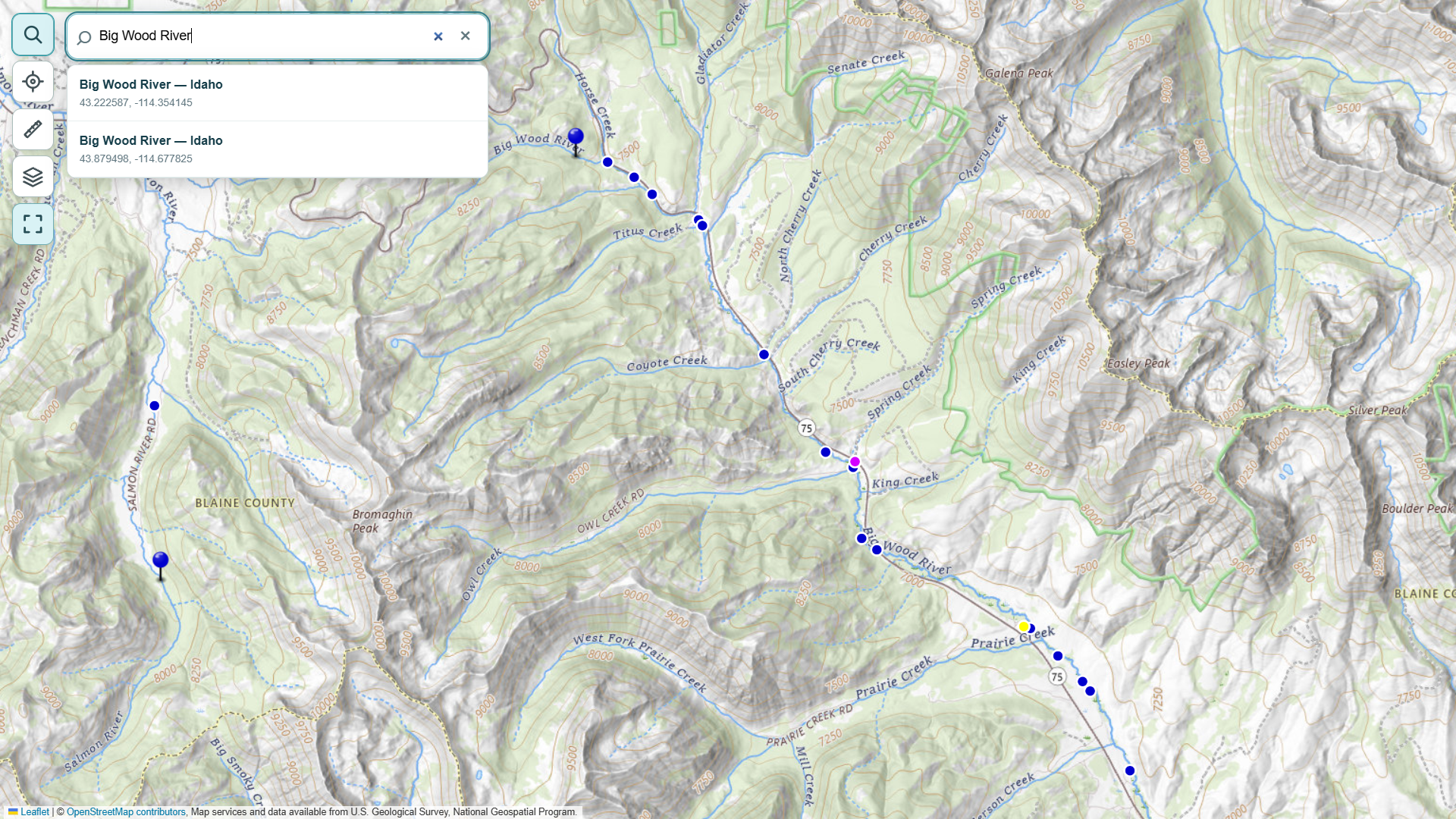
Open Search and type a water name. Matches appear with their states. If you see several matches, choose the water and state you want.
Orange lines show the approximate mapped upstream and downstream ends of special-regulation sections.
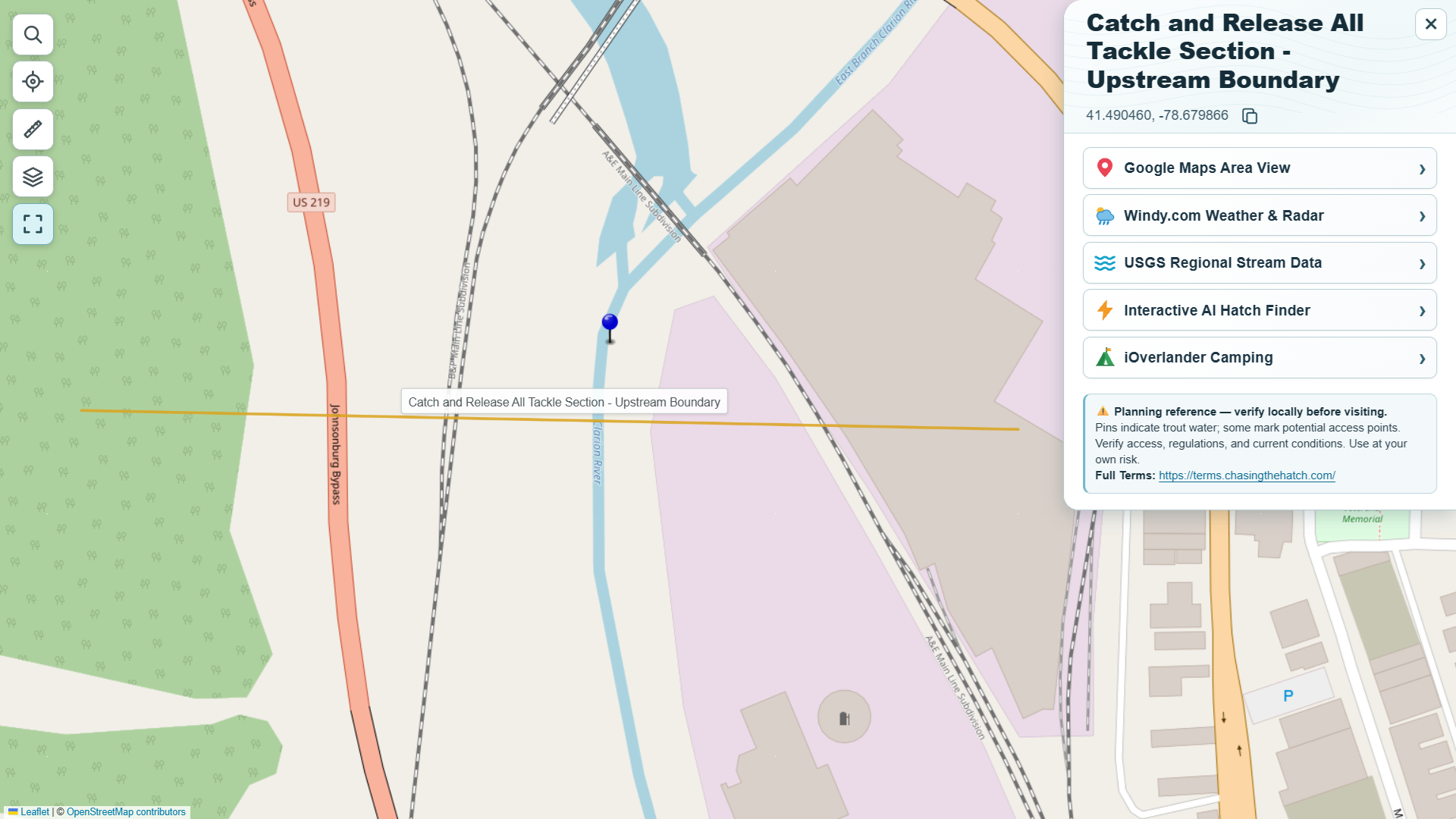
Orange lines show the approximate mapped upstream and downstream ends of special-regulation sections. Tap or click a highlighted line for details.
Always verify current fishing regulations with the appropriate fish and wildlife agency before fishing.
Use the same map on your computer, tablet, or phone.
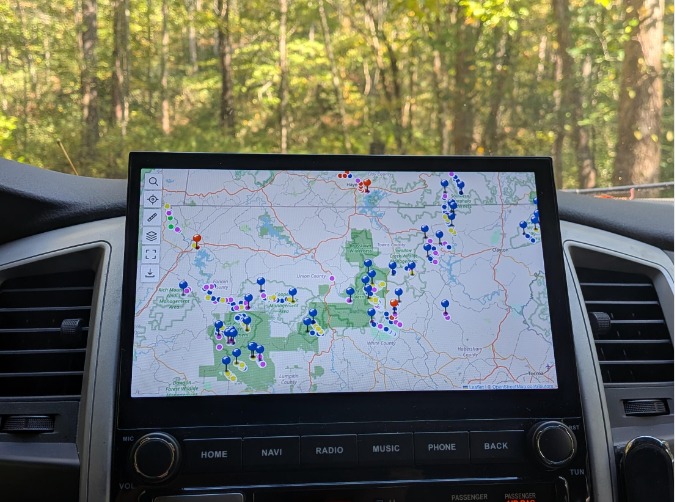
Use chasingthehatch.com on your computer, phone, or tablet. The same map and tools are available on computers, phones, and tablets, although their appearance may vary by screen size.
Save a Home-screen icon so you can open the map with one tap.
Open chasingthehatch.com in Chrome, then follow the steps for your device.
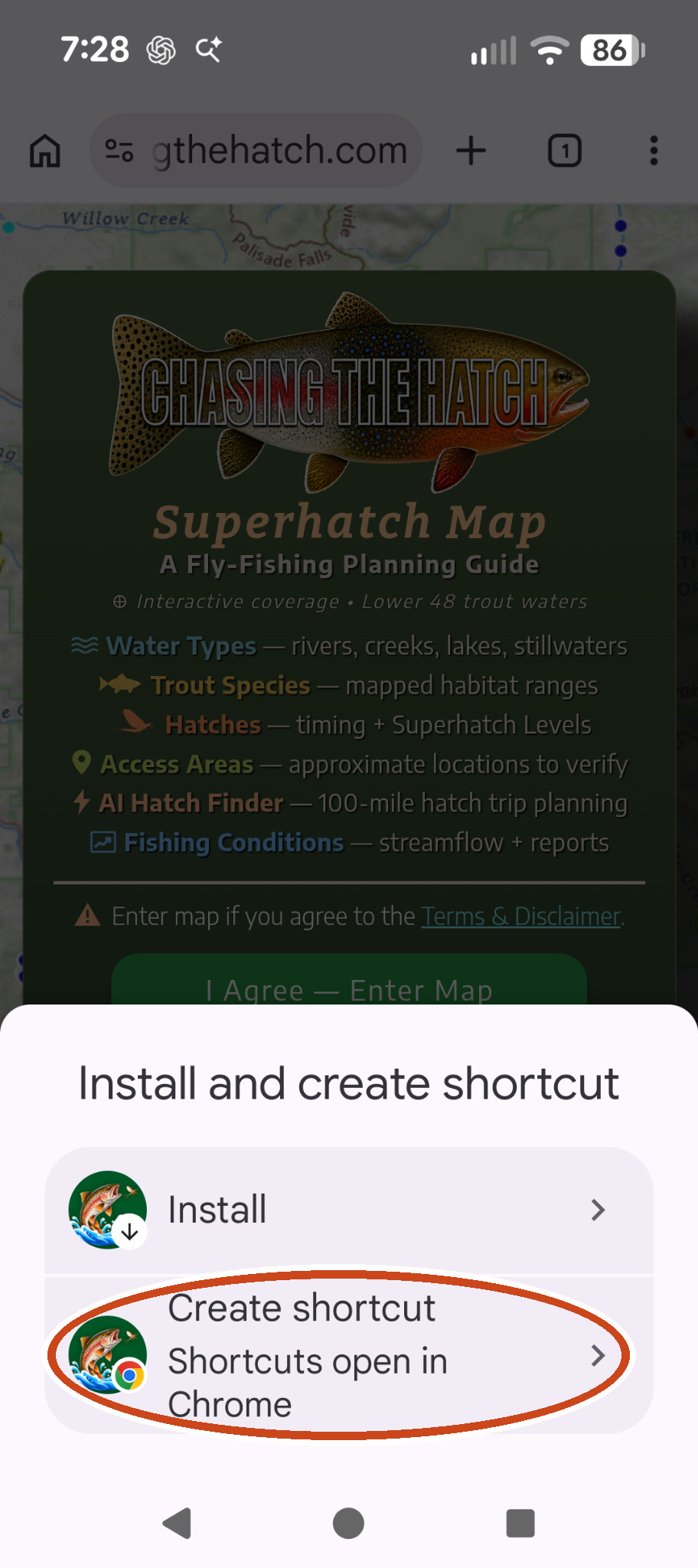
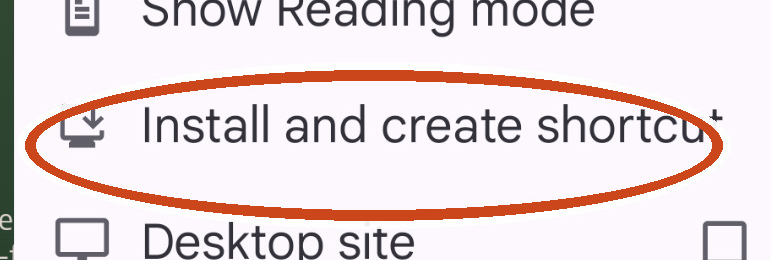
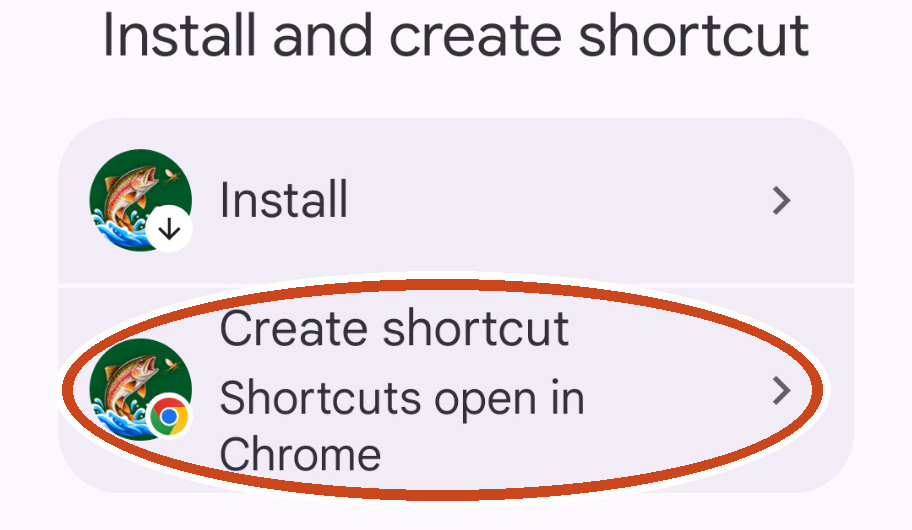
In Chrome, tap ⋮ → Install and create shortcut. Choose Create shortcut, change the name to Chasing if you want, then tap Add. If your phone offers Install instead, that also works.
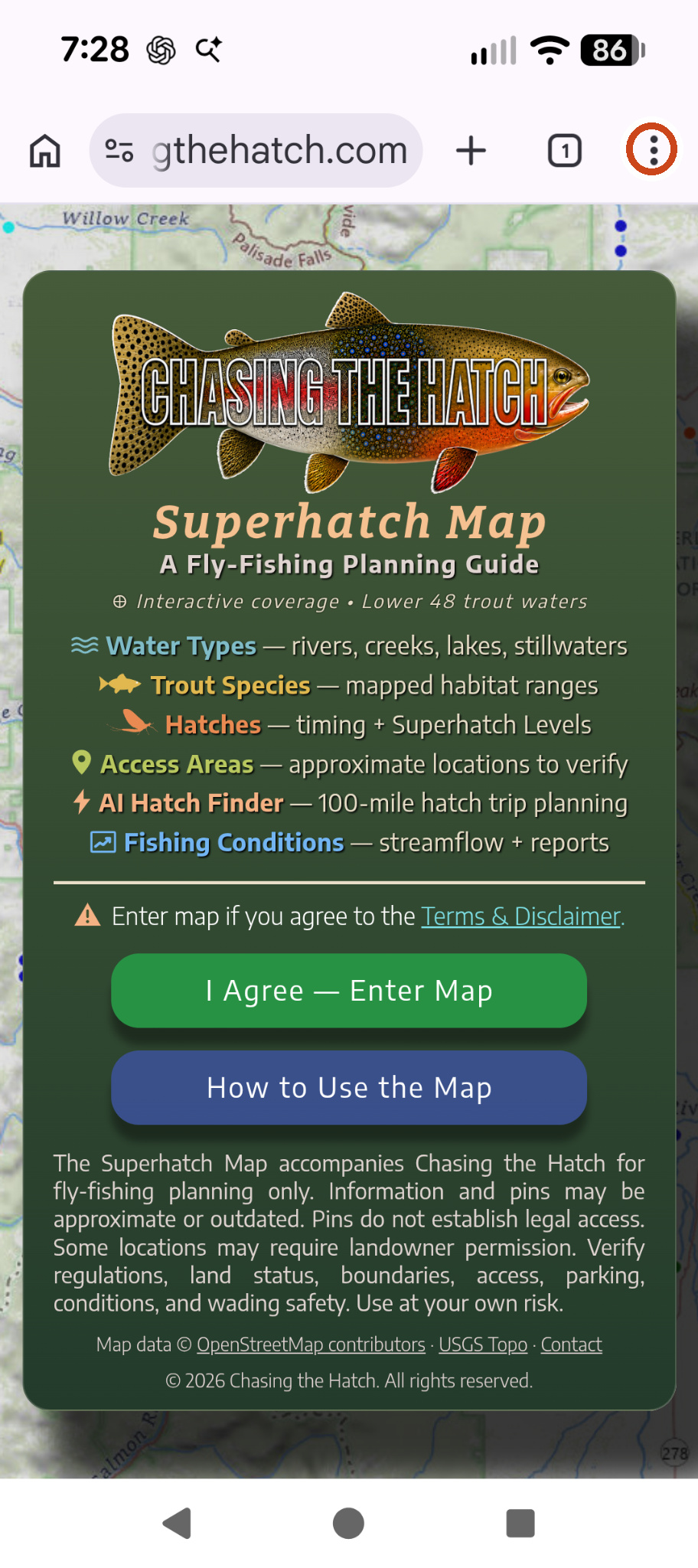
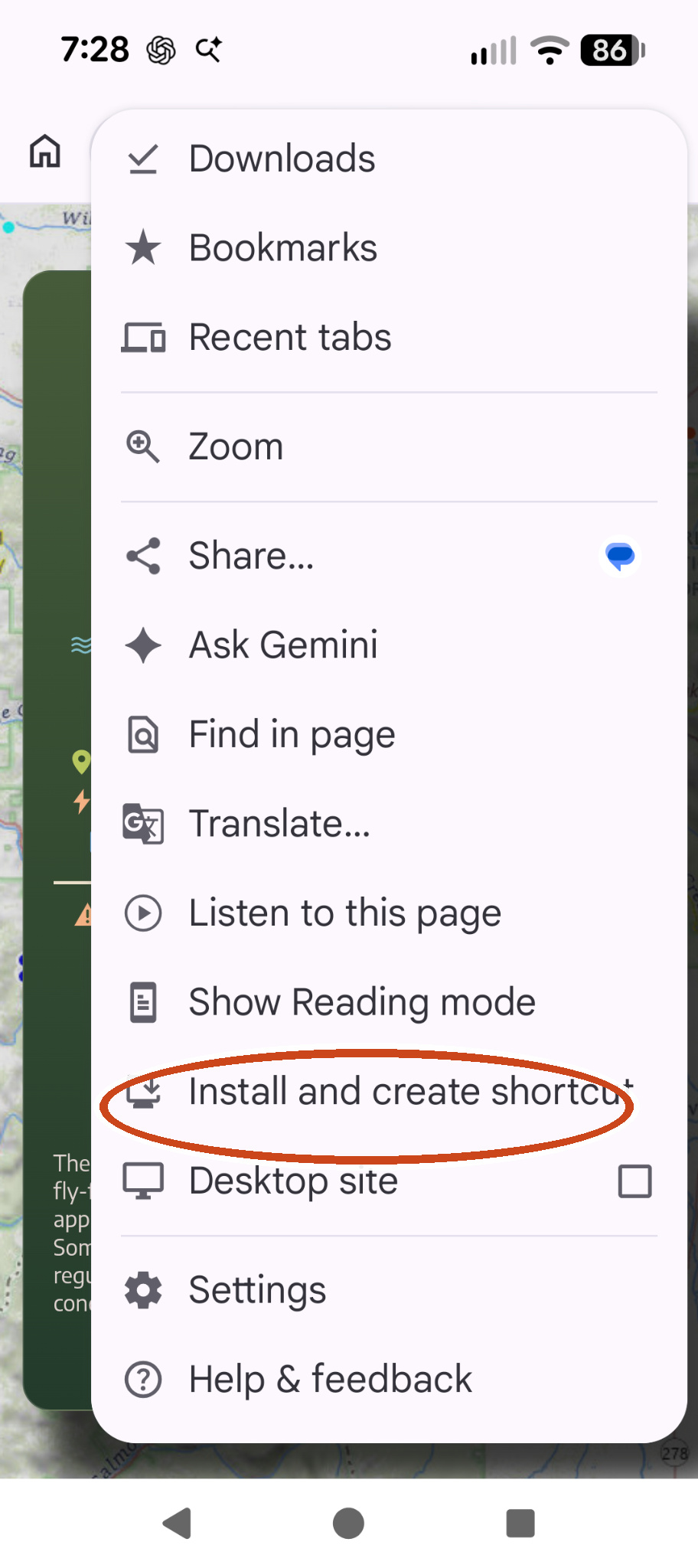
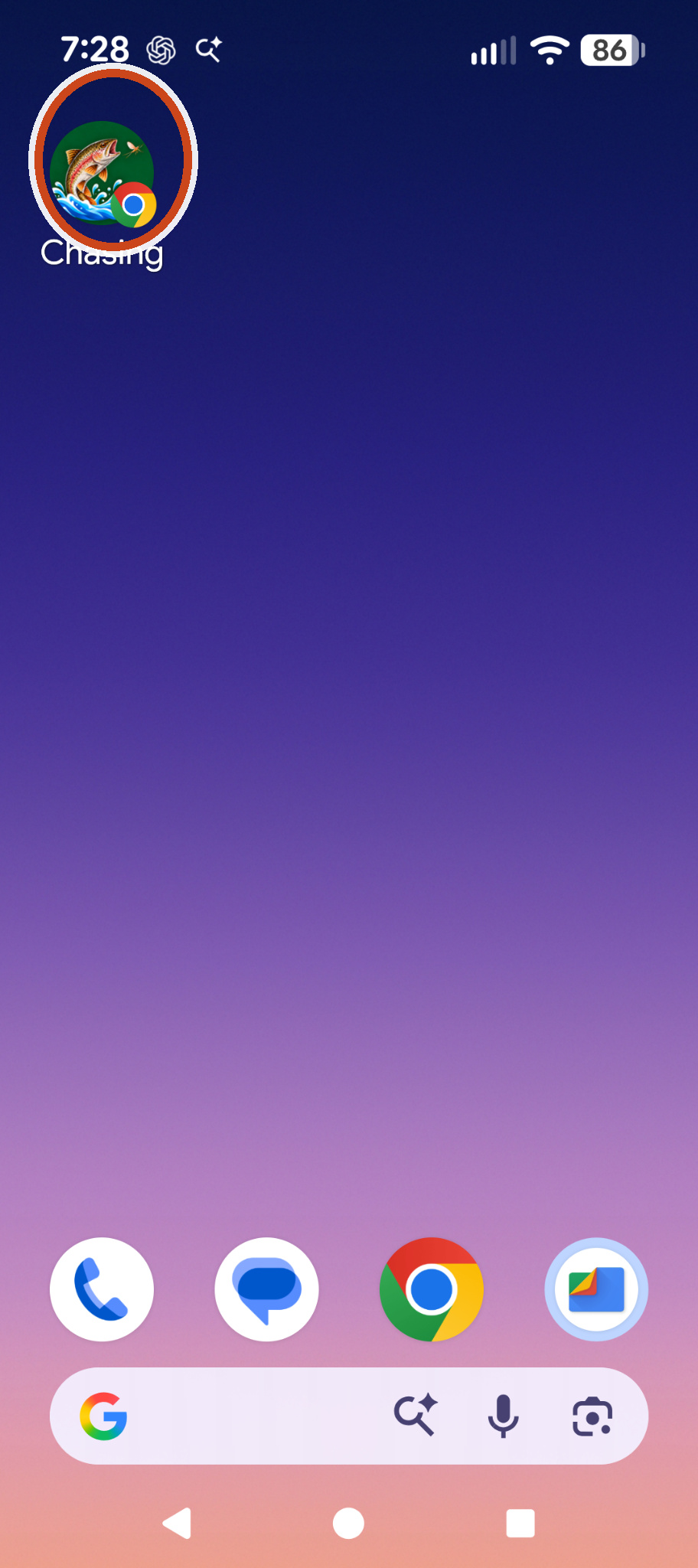
STEP 2: Tap “Install and create shortcut”
STEP 3: Choose “Create shortcut”
In Chrome, tap Share → Add to Home Screen → Add. You can change the shortcut name to Chasing before adding it.
Tap the Share icon.
Choose Add to Home Screen.
 ChasingAdd
Tap Add to finish.
These iPhone/iPad screens are illustrations, not device screenshots. Menu positions may differ by Chrome or iOS version.
Check your connection before heading into areas with little service.
The map needs internet access through cellular data, Wi-Fi, or satellite internet.
Save the directions and check regulations while you still have service.
Satellite internet, such as Starlink Mini, may help where cell service is poor.
If your cellular plan allows it, use a phone hotspot to connect a tablet.
Open a pin in Google Maps to check nearby roads and landmarks.
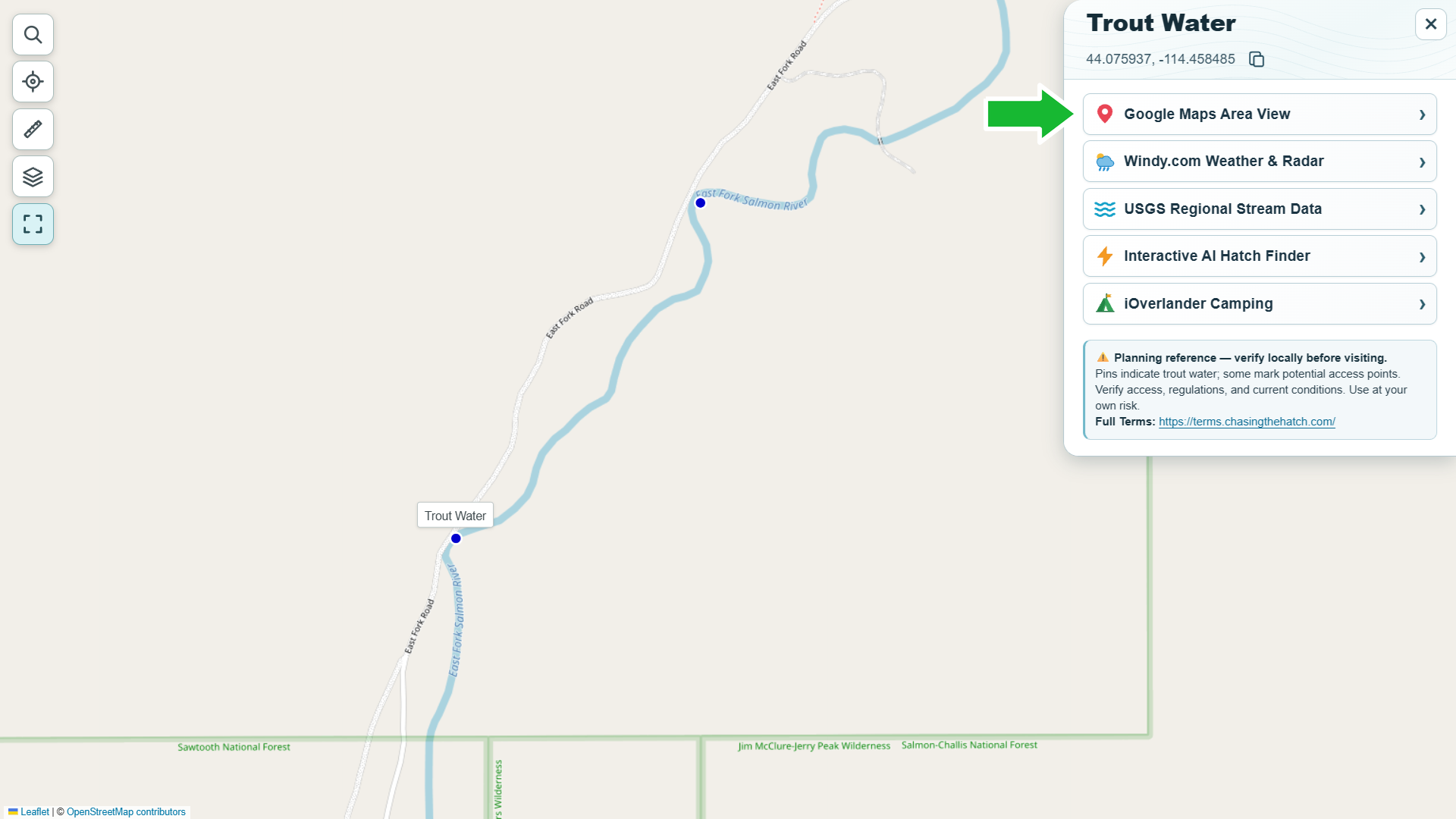
Look for nearby roads, parking, trailheads, and landmarks before you go. Google Maps does not confirm legal access or show every closure. Check posted restrictions and set your route before driving.